Official Manual · Quick Start
Shadowrocket Setup and Connection Guide
Follow this sequence: details → mode → connection → verification. For the initial setup, establish a manual connection before adjusting rules or automatic connection conditions.
Before You Start: Prepare the App and Connection DetailsThis guide assumes Shadowrocket is installed from the App Store and that you already have your own subscription link or server details. This site does not provide, sell, or recommend servers or subscriptions. A one-time app purchase is not a service plan.
If you haven’t installed the app yet, read the App Store purchase and download guide first. Check the developer, Shadow Launch Technology Limited, and app ID
932747118. See the App Store listing for system requirements.
These instructions focus on iPhone and iPad. The images are official App Store screenshots to help identify each screen; fields and layouts may differ on your device. Do not copy the connection details shown in the screenshots.
Step 01 · Connection Details
Add Server: Add a Server or Import a Subscription
After opening Shadowrocket, go to Home. The SERVER group displays server entries, and Add Server is where you add them. First identify what you have: a full subscription URL, a single server share link, or a set of parameters including an address, port, and authentication details. Each is added differently. Don’t enter a subscription URL in Host or repeatedly update a single-server link as if it were a subscription.
Have a Subscription? Choose Subscribe
Once you have the complete subscription URL from your own provider, tap Add Server in Home, open Type, and choose Subscribe. Paste the URL into the URL field. Check that the full address is intact, including its beginning, end, and query parameters. Watch for extra spaces, line breaks, or punctuation added by a messaging app. Save, return to Home, and wait for the subscription to load.
After a successful import, the relevant group and server entries should appear in Home. Expand the group, tap an entry you intend to use, and confirm it is selected. Saving a subscription URL only stores the address in the app. If no entries load, check the update result before trying to connect. Updating a subscription retrieves the remote list; it does not turn on the connection or guarantee that a server is still working.
Entering Details Manually: Check Type and Protocol Fields First
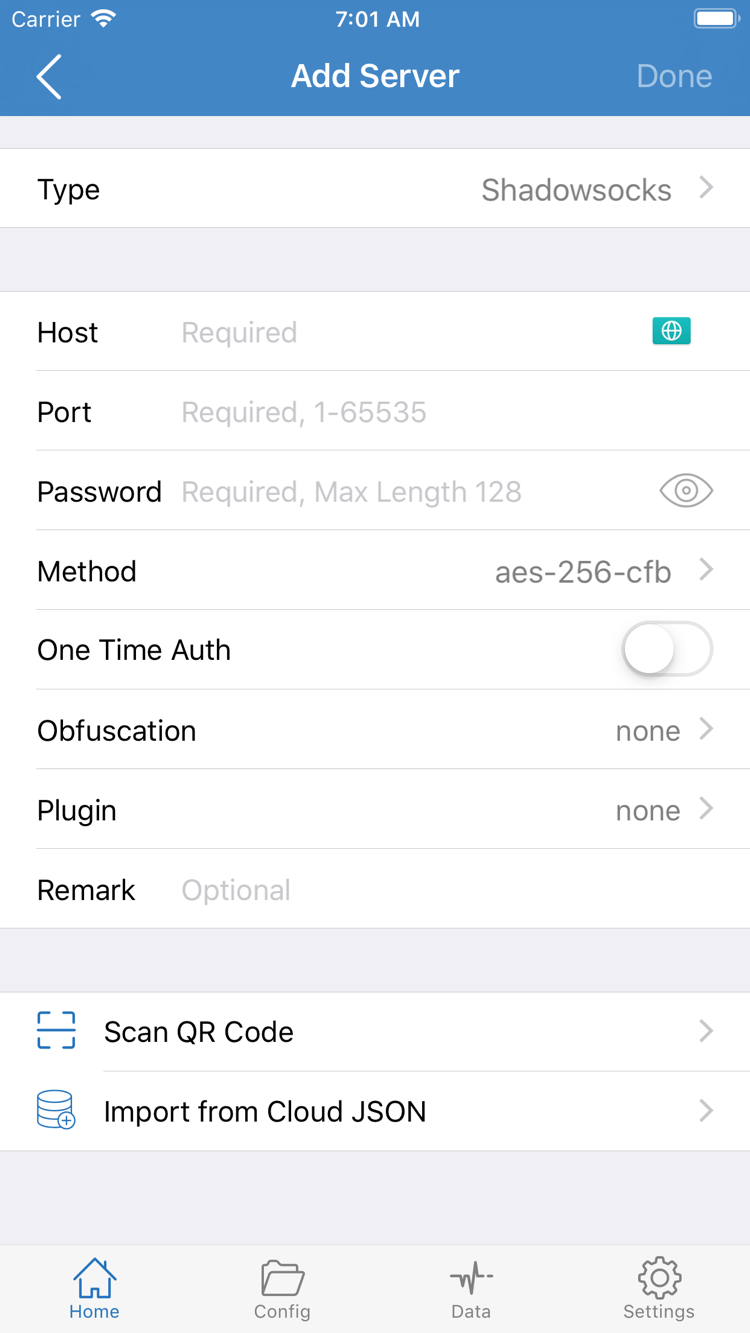
If you have server parameters, choose the correct Type in Add Server, then enter the Host, Port, and authentication details required by that protocol. Shadowsocks, VMess, VLESS, Trojan, and Hysteria2 use different fields. The fields shown may change when you change Type, so select the protocol first to avoid entering details in the wrong places.
In the screenshot, Host is the server address, Port is the port, and Password and Method should match your own details. For other protocols, make sure UUID, TLS, Server Name, and transport settings also match. Don’t guess an encryption method or omit an authentication field. After saving, return to Home, find the new entry, and select it. To make a change, edit that entry instead of creating several nearly identical copies.
If you have a QR code, use Scan QR Code on the appropriate add screen and grant camera access if prompted. Import from Cloud JSON is another option, but use it only if you already have a file in the supported format. A QR code, single-server share link, subscription URL, and JSON file are not interchangeable just because they all contain connection details.
Done when: A server entry appears in Home, and you have selected the one you intend to use. Next, choose Global Routing, then turn on the connection.
Step 02 · Request Routing
Global Routing: Choose Config, Proxy, or Direct
Return to Home and tap Global Routing to check the current mode. This guide refers to the three options as Config, Proxy, and Direct. The mode determines how requests are routed; the entry selected in SERVER determines which server is used when a request goes through a proxy. These settings serve different purposes: selecting a server does not mean every request will use it.
- Config: Routes requests according to the rules in the current configuration, which may direct them to PROXY, DIRECT, REJECT, or another configured policy. Before using rule-based routing day to day, check the configuration and its policy references.
- Proxy: Routes general requests through the selected proxy path, making it useful for an initial check that the server can connect. It won’t fix connection problems; incorrect server details can still cause failures.
- Direct: Sends general requests directly, making it useful as a comparison. If a destination opens in this mode, that does not prove the proxy server is working.
Config: Check the Configuration File and Rule
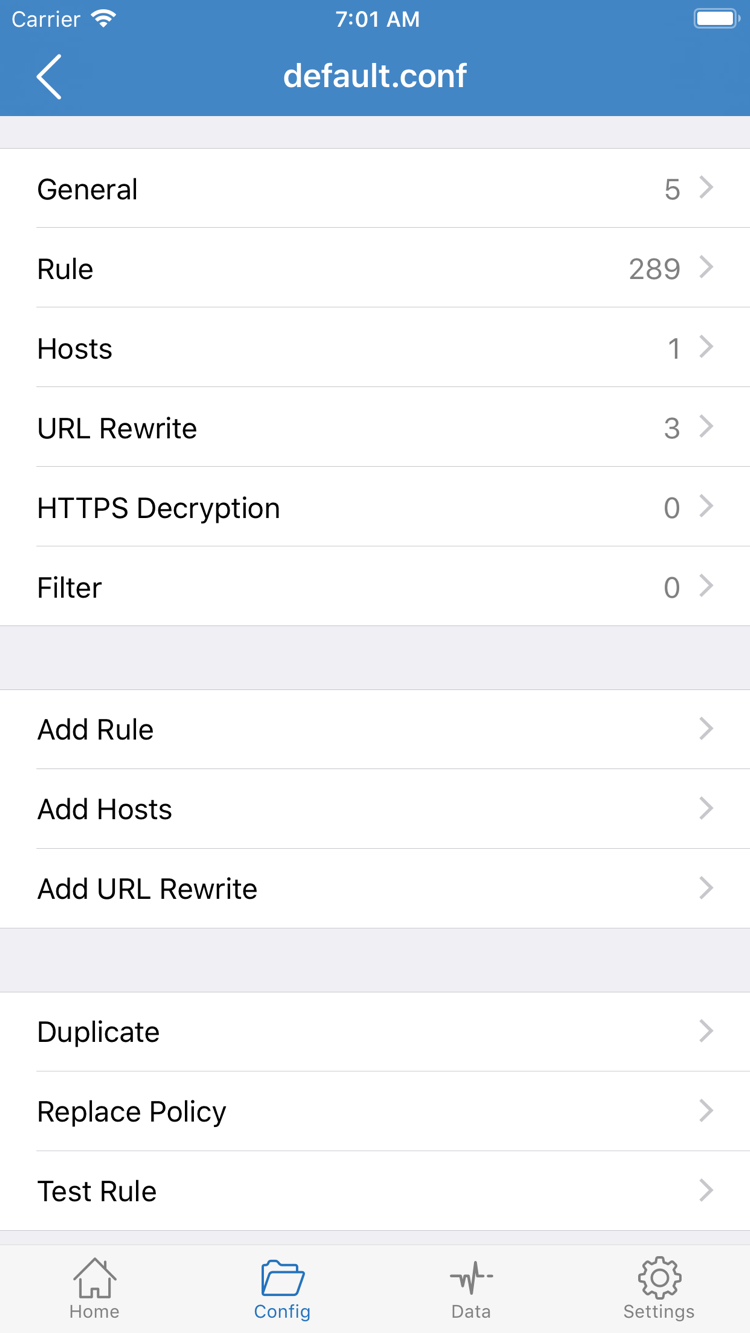
Before using Config, open Config and confirm that the intended configuration file is selected or enabled, then review Rule. The screenshot shows the configuration editor, with separate sections for General, Rule, Hosts, URL Rewrite, and HTTPS Decryption. Add Rule creates a new rule. Opening a file does not necessarily make it the active configuration, so return to the file list and confirm its selection status.
Rules are matched in the order specified by the configuration. The lines below demonstrate syntax; they are not a complete configuration file. The first line matches a domain suffix, and the second is a final match. PROXY, DIRECT, and REJECT are policy keywords, not server addresses or subscription content.
DOMAIN-SUFFIX,example.com,PROXY
FINAL,DIRECT
For your first connection, don’t change multiple rules at once. Start with Proxy for a basic check, then switch back to Config to check routing. If Proxy works but a destination fails in Config, focus on the matching rule and its policy instead of immediately re-entering the server details. For more on changing complex rules, see Rule Routing and Troubleshooting.
Done when: You know which mode is selected and which server will be used when a request goes through a proxy. Keep these settings and continue to the connection step.
Step 03 · System Connection
Home: Turn On the Connection and Approve the VPN Configuration
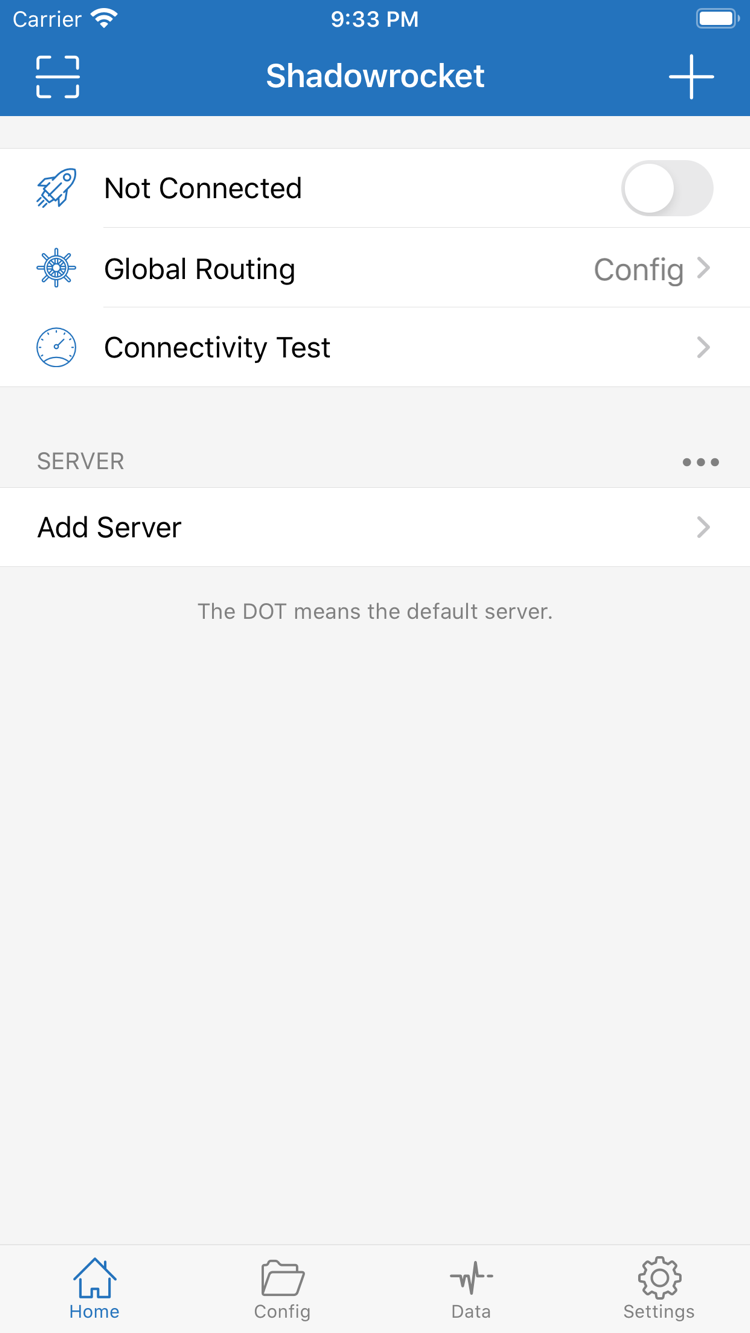
Return to Home and check two things: the correct server is selected in SERVER, and Global Routing is set to the mode you chose in the previous step. Then turn on the switch at the top. When disconnected, you may see Not Connected. Check the status after turning on the switch; tapping it does not necessarily mean the connection succeeded.
The first connection may prompt the system to add a VPN configuration. This authorizes the app to establish the relevant network connection; it is separate from adding a rules file in Config. Confirm the prompt after checking that it was triggered by your action in Shadowrocket, and complete device authentication if needed. Return to the app, wait for the status to change, then test access.
If you denied the request, turn on the connection switch again and check whether the authorization prompt reappears. If the configuration still cannot be created, check the relevant records and device restrictions in the system’s VPN settings. Organization-managed devices may have additional policies; follow your organization’s device management requirements and avoid deleting unrelated configurations.
A VPN status in the system indicates that a tunnel is established or active, but does not by itself confirm that server authentication, domain resolution, and access to your destination are all working. Conversely, some rules send certain requests directly, so being able to open one page does not prove that all traffic is going through the proxy.
For this walkthrough, keep the connection manual and leave On Demand off. If the connection drops right away, note the message and time, then follow the troubleshooting steps below. If the switch stays on, continue with Connectivity Test and an actual access check. You don’t need to buy the app again in either case.
Step 04 · Verify the Results
Connectivity Test: Evaluate Test Results and Actual Access Separately
Run Connectivity Test from Home and wait for it to finish. The result reflects how the selected test method responds to its test target; it does not mean every site and app will work. If an item returns no result, note what happened. Don’t delete the entire subscription based on a single test.
Then open a destination you are authorized to access and expect to work. Start with a regular webpage, then test the specific feature you need. If the page loads but images, sign-in, or other requests fail, assess those requests separately. A single page may call multiple domains, and Config rules may route each one differently.
- Check the connection: Return to Home and confirm that the switch is still on and the connection status is stable.
- Check the server path: Keep the server unchanged, use Proxy to test basic access, then compare it with the Config mode you intend to use.
- Check the rules: If the results differ only in Config, review the relevant domain rules, final-match rule, and referenced policy.
Change only one variable at a time when comparing results. For example, keep the server fixed and switch Global Routing, or keep the mode fixed and switch to another server you already have. After each change, send a new request and reopen the destination if needed to avoid stale connections or cached results. If you update a subscription, change servers, modify DNS, and edit rules all at once, it’s difficult to tell which change affected the result.
After testing, restore the mode you intend to use day to day. Upload and download readings in Data can help show that traffic is active, but an increase alone does not prove that a destination is accessible or that every request is proxied. You’re done with this setup when you can reliably confirm that the connection stays active, the destination is accessible, and routing behaves as expected.
Step 05 · Troubleshoot by Stage
Settings: Identify the Failure Point Before Changing Anything
If something goes wrong, turn off the connection and check that the device can access the internet over its current Wi-Fi or cellular network. Sign in to Wi-Fi networks that require authentication first. Repeatedly updating a subscription or changing rules won’t usually help if the underlying network is unavailable. Restore basic access, then check the stage where the failure occurs.
No Subscription Entries? Check the URL and Update Result
Make sure you have the complete subscription URL, not a service webpage or a single-server share link. Check whether it has expired, whether any parameters were cut off, and whether the current network can retrieve the subscription. If the address saves but no entries appear, check adding the address and loading its contents separately. If the error relates to your account or remote subscription content, contact your own provider. Don’t post a private subscription URL in a public forum.
The Switch Won’t Stay On? Check VPN Authorization and Authentication Details
First distinguish between “the system hasn’t allowed the VPN configuration” and “the server can’t connect.” For the first, revisit the connection authorization steps. For the second, check Type, Host, Port, and the authentication fields. Resolving an address doesn’t mean its port is reachable, and a reachable port doesn’t mean the password or other authentication details are correct. If you see a specific error, record its exact wording and compare your details field by field. Don’t change fields at random and hope for a fix.
Test Results and Browsing Don’t Match? Check Test Method and Rules
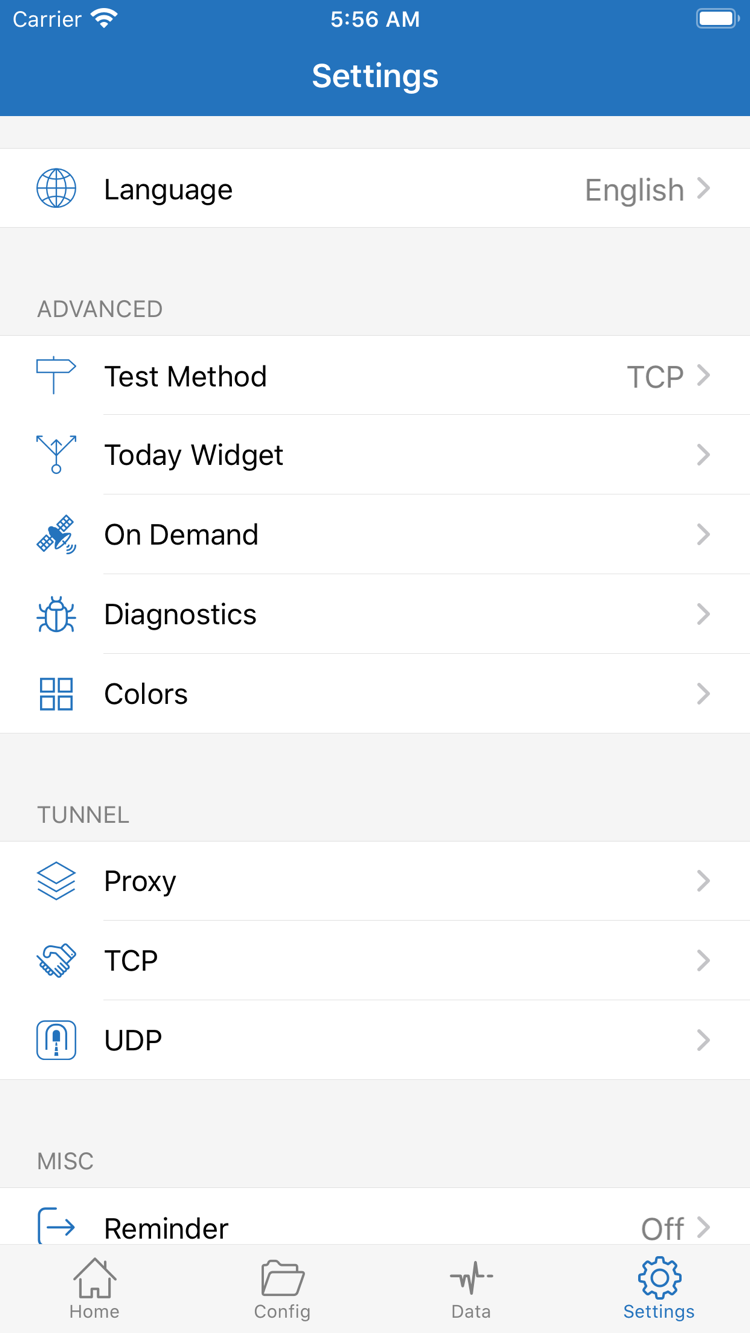
In Settings, check Test Method and make sure you understand what it measures. Different methods check different things, so a test result is not a complete substitute for an actual request from an app or browser. If Proxy works but Config fails, go to Config and check Rule. If both fail, check the server details, underlying network, and the destination itself.
Settings also includes Diagnostics and options related to Proxy, TCP, and UDP. These are not a set of “connection boost” options that should all be turned on. For initial troubleshooting, leave them as they are unless you have evidence pointing to a specific setting, and note its original value before changing it. A successful TCP request does not prove that UDP works; check the type of request that is actually failing.
If you need to investigate further, use Diagnostics to collect relevant information. Note the time of the failure, current network, Global Routing mode, selected server, and what happened. Before sharing logs or screenshots, hide subscription URLs, passwords, UUIDs, access tokens, and other private details. Diagnostics may also include the domains you visited, so avoid sharing the full report publicly.
This page covers troubleshooting for your first setup. For more detailed cases, read Shadowrocket Connection and Rule Troubleshooting. For purchase restoration and App Store storefront region issues, see the App Store Guide; account and purchase issues aren’t handled in connection settings.
Step 06 · Optional Settings
On Demand: Enable It After Manual Connections Are Stable
On Demand starts or stops connections based on conditions; it does not fix incorrect server details or an expired subscription. After completing the manual connection and access checks above, open Settings and review On Demand. First define what you want—for example, connecting under a particular network condition or staying disconnected under specific conditions—then check the conditions and actions available on the screen.
For your first setup, add just one condition that’s easy to test. After saving, test what happens when it matches and when it doesn’t, then check the connection status in Home. For a Wi-Fi condition, use the network’s actual name. For a domain condition, follow the format specified by the app; don’t enter a full webpage URL where a domain is expected. If you add multiple conditions, check that their order and actions don’t conflict.
If the connection comes back after you turn it off manually, check whether On Demand is still active before assuming the switch is broken. To troubleshoot other connection issues, pause On Demand and test in a clearly defined manual state. Once the basic connection works again, restore automatic conditions one at a time.
The basic setup is now complete: your connection details load, the selected mode is clear, the system allows the connection, and access has been tested. If a problem arises later, start with the layer that changed instead of repeating the entire setup. If subscription content changed, check for updates; if the mode changed, check the rules; if the issue started after switching networks, check the underlying network.